
CH 05 · Meet the Web UI
Chapter Goal
In the previous chapter you installed dsh, filled in the Key, picked a workspace, and ran your first task. This chapter pauses to read the interface: what each area does, what switches are hidden in the settings panel, what each of the three permission levels lets the Agent do, and how to read the Trajectory view. Once you're done, you'll find that the "every run is traceable" line from CH 02 is sitting right there in the top-left of the interface — one tab away.
Interface Layout: Get Acquainted
This is the full-interface screenshot I took after running the first task, with the main areas annotated:
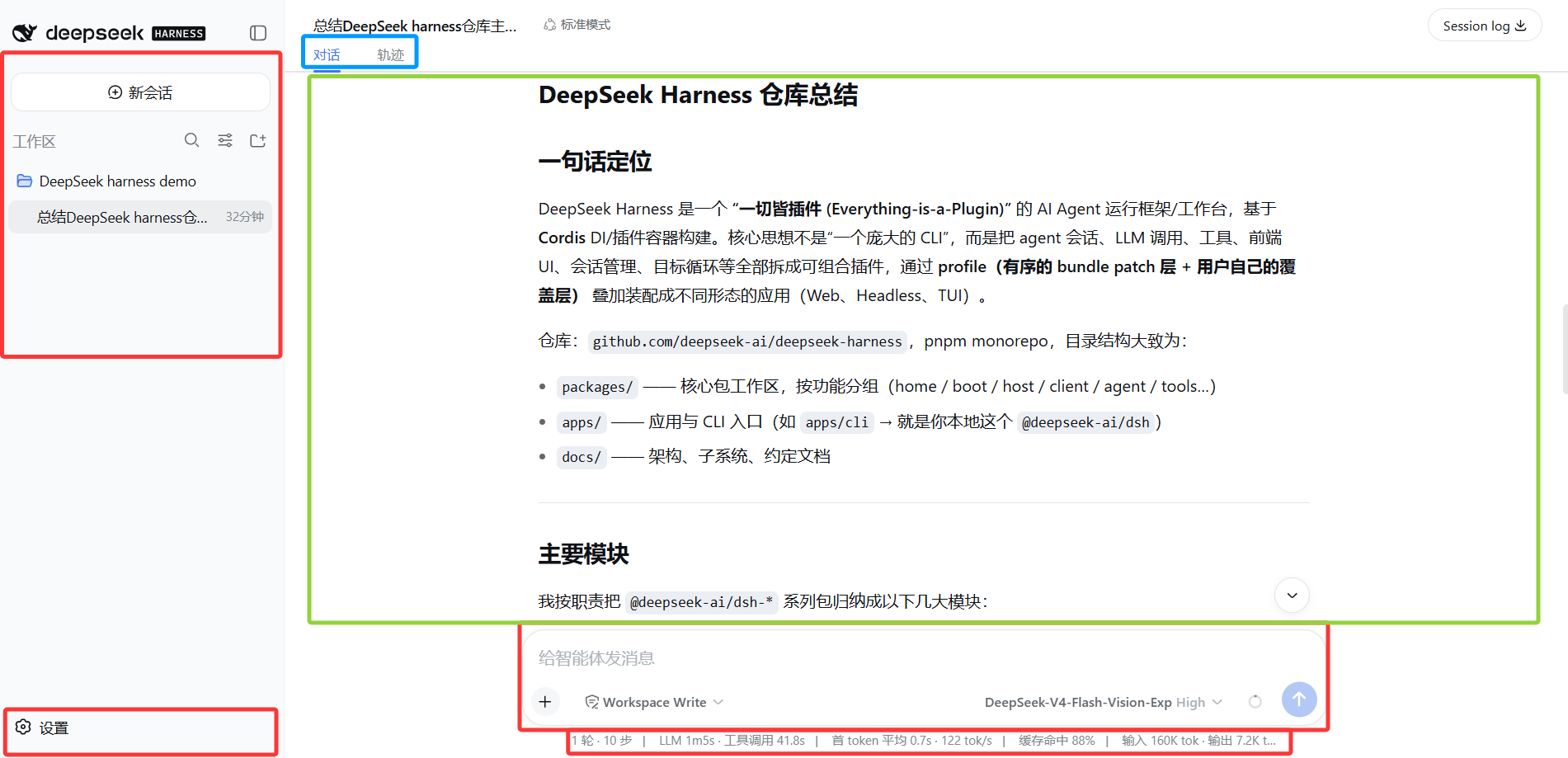
Area responsibilities:
| Area | What it does | Notes |
|---|---|---|
| Left | Workspace list | One workspace per project directory; pick the workspace here (open the list and pick one, or "⊕ New Session" to create); the bottom is the Settings button |
| Center | Session area | Where you send messages, the Agent works, and results are shown; at the top are the Conversation / Trajectory tabs |
| Bottom | Input area | On the left of the Send button is the context-occupancy ring; further left are the Model and Permission selectors; below is the stats bar |
Settings Panel: The Gear at the Bottom-Left
The Settings button is at the bottom-left of the interface. When opened, the left side lists feature categories — General Settings / Models / Plugins / Agent Presets:
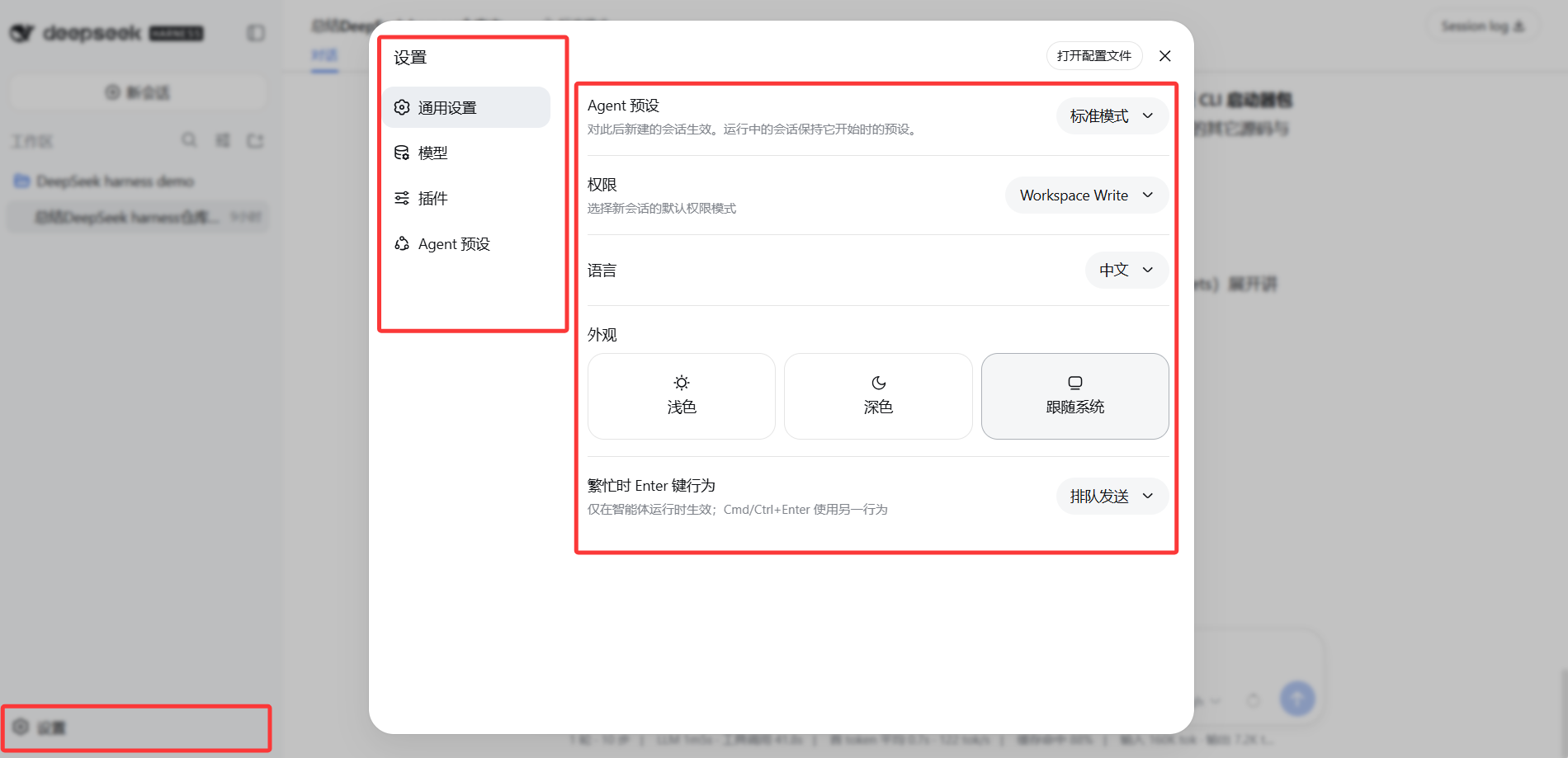
First, the General Settings page: language, appearance, and Enter-key behavior while busy are all here, plus two important ones — Permission (the default permission mode for new sessions; mine is Workspace Write) and Agent Preset (currently "Standard"). The Agent Preset here is the four runtime modes (Standard / Code / Minimal / Creator) we covered in CH 02 — what you pick here is "which plugin combination new sessions will use by default". Note the line below: "Takes effect for newly created sessions. Already-running sessions keep the preset they started with." — defaults set in General Settings only apply to new sessions, a rule you'll encounter again and again.
Now look at Settings → Models: the API Key is filled in on the DeepSeek card (if filled, it shows as configured), and at the bottom you can add a Provider (using a built-in directory like Anthropic or OpenAI) and add a Custom Provider (for your own gateway or local model — fill in Provider ID, API address, protocol, key, and at least one model). Changes to model routing take effect immediately; no service restart needed. The Key is write-only: after saving, the page only shows a redacted descriptor, and the plaintext only lands in $DSH_HOME/.credentials.yaml locally — the same path mentioned in CH 03.
Three Permission Levels: What It Can Touch on Your Computer
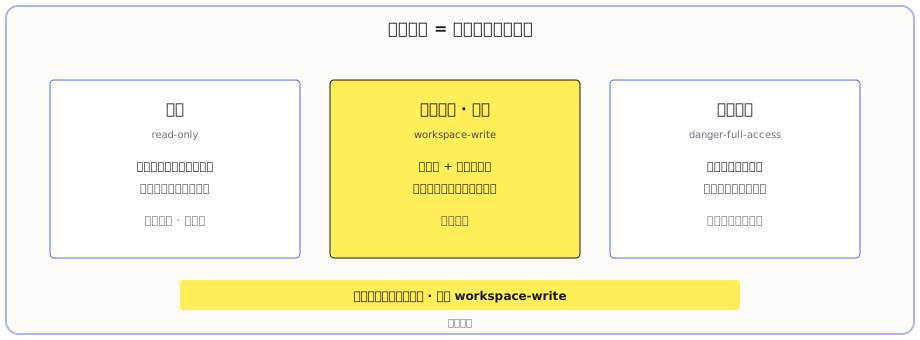
This is the thing you should understand upfront about dsh. The official file-sandbox is defined as three modes:
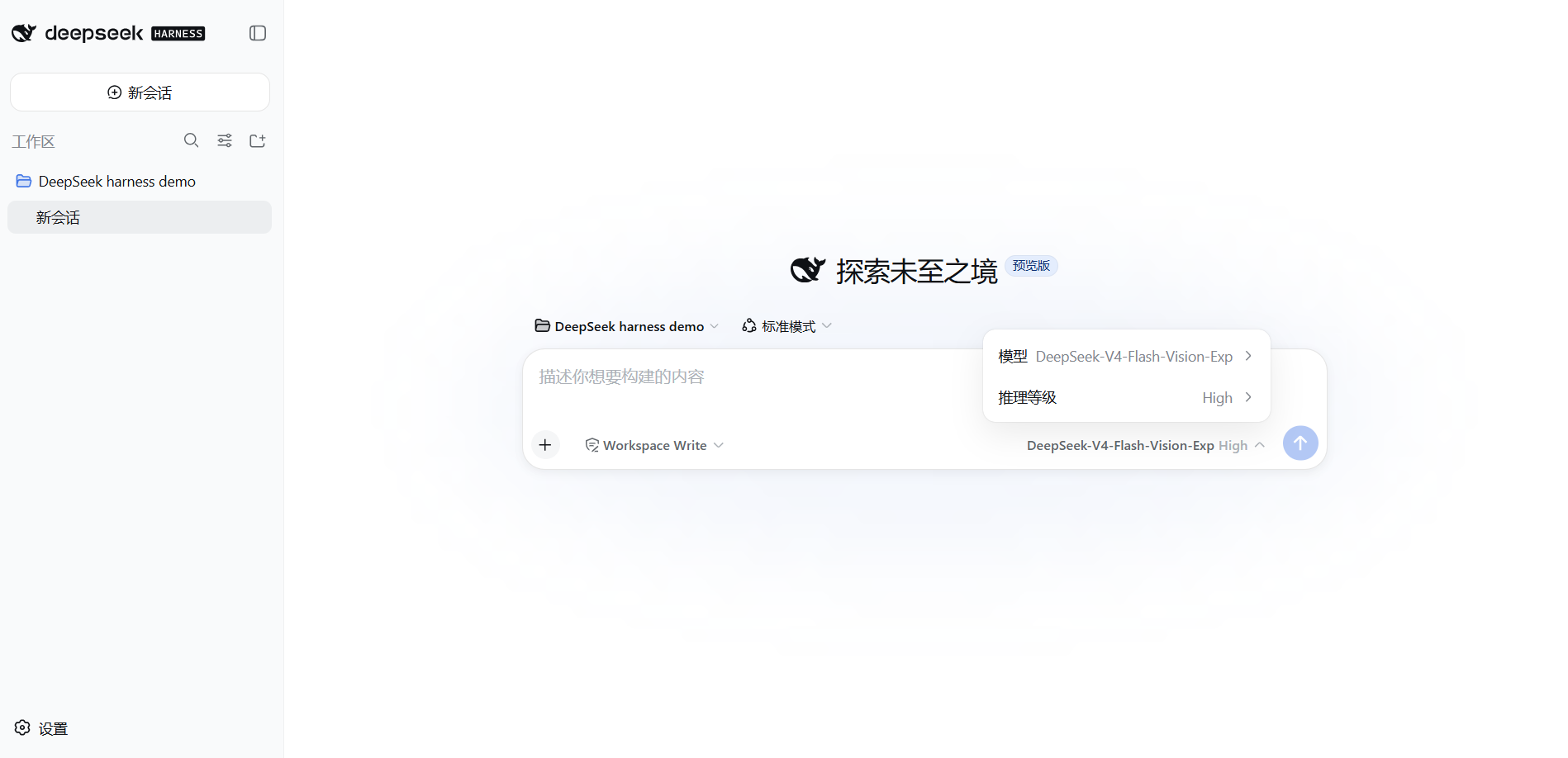
Compare this to the permission selector on the left of the input box in your interface (in the panel that pops up after picking a workspace):
The three levels in plain words:
| Permission | What it can do | When to use it |
|---|---|---|
read-only | Read only, can't change a single byte | Read-only analysis, code review, pure Q&A |
workspace-write (default) | Writable in the workspace + system temp area; outside the workspace, it pops a dialog and asks first | Daily work, the vast majority of cases |
danger-full-access | Full read/write everywhere, no boundary | For system maintenance tasks that genuinely need global changes; the switch will require a second confirmation |
One more note on the official semantics: the write boundary for workspace-write is "the workspace root + the temp area promised by the backend"; read-only refuses writes outright; danger-full-access bypasses isolation entirely. Note that permissions only govern file-system effects — network and process visibility are not covered by this definition.
For daily work, stick with the default workspace-write, get familiar first, and only consider the third level when you genuinely need to act globally.
Switching comes in two flavors, don't mix them up:
- Just for this session, temporarily: type
/permissionin the input box and pick a level. Only affects the current session. - Change the default (so future new sessions use it): go to Settings → General → Permission. Only affects sessions created afterward; already-running sessions are untouched.
Model and Reasoning Effort
In the model selector, you see the configured models (once you filled in the Key, the DeepSeek ones appear automatically). There's an explicit official rule: the model picked in the model selector is the default for new sessions; sessions that have already sent requests will keep the model they were using when they started, and won't change with the default (the session records its own model, changing the default won't silently rewrite past requests).
So if you want different sessions to use different models (light daily work on flash, hard tasks on pro or stronger), just open new sessions — each one is independent.
Reasoning effort is another knob; the DeepSeek official model has four levels:
| Level | Characteristic |
|---|---|
off | Disables thinking, fastest and cheapest |
low | Light thinking, enough for simple Q&A |
high (default) | Deep reasoning, more accurate on complex tasks, slightly slower and pricier |
max | Highest intensity, only for the hardest work |
For daily work, just keep high; if you find it slow, dial it down. The deeper "what each level really affects and how to change it" is covered in CH 07. Model changes also take effect on the next request, no restart needed.
Trajectory: The "Traceable" from CH 02 Hides Here
Remember that "every run is traceable" line from CH 02? Look at the top-left of the interface — Conversation / Trajectory sit side by side. Click Trajectory and the full execution record of this round is laid out in front of you. Look at this real screenshot:
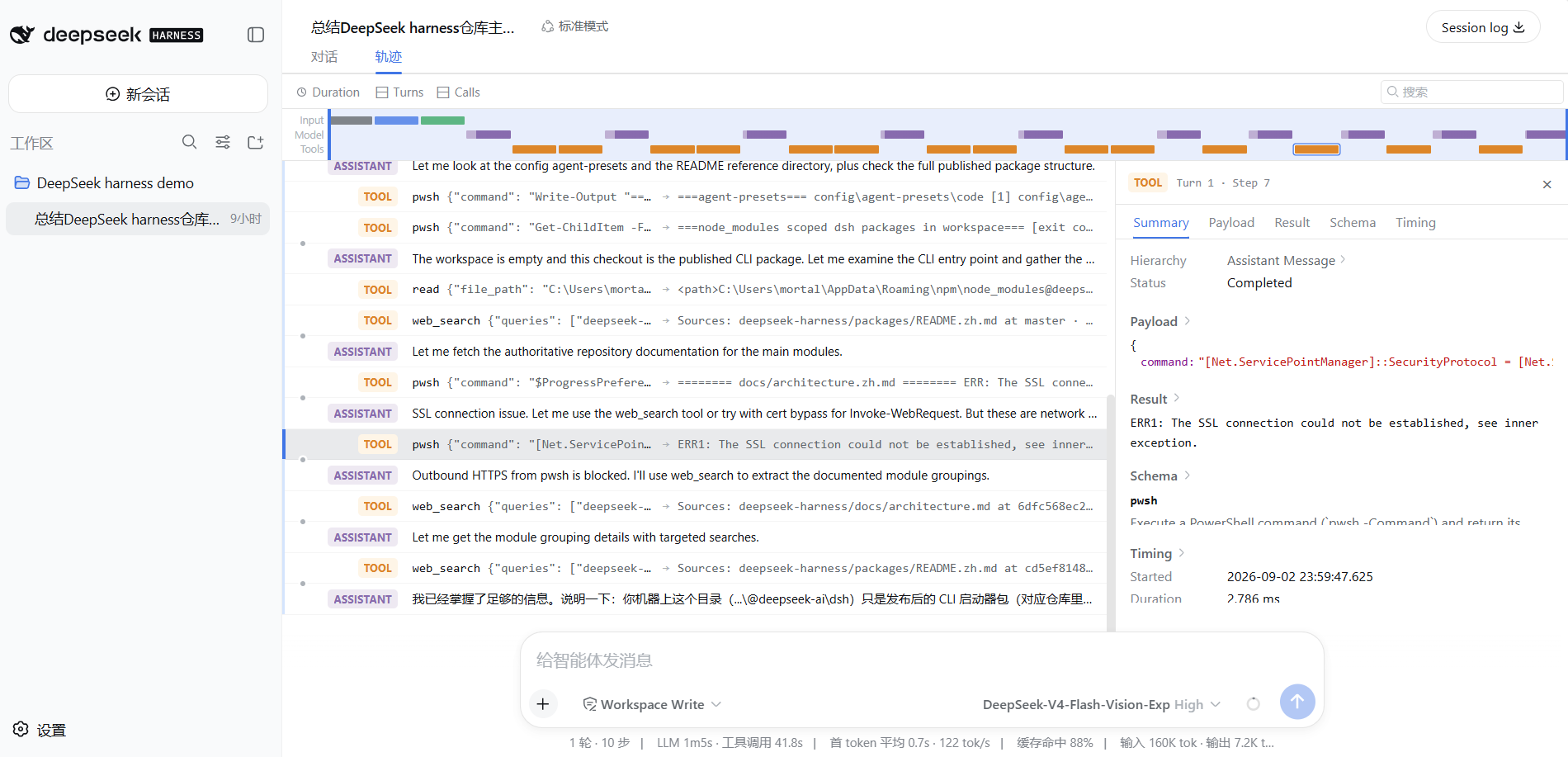
How to read this:
- In the middle is a timeline; ASSISTANT (think/speak) and TOOL (tool calls) alternate, and from top to bottom is the actual order the Agent worked in.
- For each TOOL row: the tool name is on the left (
pwsh/read/web_search), and on the right are the actual parameters sent and key results returned. - Click any TOOL row, and the right-side panel expands the details for that step: Summary / Payload / Result / Schema / Timing, plus Status (Completed) and Hierarchy.
- At the top there are Duration / Turns / Calls overview, plus a search box to find steps by keyword.
In my task this time you can see the Agent actually stumbling: it first read config, read files, and when trying to use pwsh to directly fetch the official docs, the SSL connection failed; it said "Outbound HTTPS from pwsh is blocked", then switched to web_search to keep looking — all these stumbles are recorded in the Trajectory. That's "traceable".
The bottom stats bar is the other side of the same thing:
| Metric | Meaning |
|---|---|
| Turns · Steps | How many steps the Agent took in this round |
| LLM time / Tool call time | Time spent "thinking" and "doing" |
| First-token mean / tok/s | Output speed |
| Cache hit | The proportion of input tokens that hit the context cache (see below) |
| Input / Output tok | Tokens fed to the model and produced by the model in this round |
Context Cache: Why the Hit Rate Is So High
The "cache hit" on the stats bar isn't a dsh feature; behind it is the DeepSeek API's context disk cache. The official approach: cache content expected to be reused on a distributed disk array; when the next input contains a repeated portion, read it from cache instead of recomputing — reducing both latency and cost.
The billing for input tokens that hit the cache is much cheaper than for cache misses. Take deepseek-v4-flash as an example: at the official current pricing, cache-hit input is about 0.1 yuan per million tokens, while cache-miss input is about 1.5–3 yuan per million tokens (depending on off-peak / peak times) — that cached portion of the input costs only a fraction of the miss cost.
Why is the hit rate so high in a single session? Because every step's input in the same session includes the previous system prompt, tool definitions, and conversation history — a stable repeated prefix. The first call has nothing cached, but from the second call on, the previous segment is cached. In my task I had 160K input tokens with a high hit rate, so only a small portion was charged at the full miss price. This is also why Agent tasks are best done in the same session — the longer the session, the more you save later.
Context Occupancy Ring
The round indicator on the left of the Send button in the input area shows the occupancy ratio of the current session's context window. Look at the real test:

The ring in the picture shows "2% context used" — the session just started, barely any usage. The context window is finite; as the Agent runs long tasks, the conversation history and tool results pile up, and the ring lets you see at a glance how much space is left. When it's almost full, you have three options: start a new session, have the Agent wrap up with a summary, or just type /compact in the input box — it will condense the current conversation's key information into a tighter summary, and the AI will continue working with that summary. It's like putting the session on a diet, no need to start over.
Run the First Task All the Way Through
The example task in the official README is this:
Summarize this repository and identify its main packages.
Which translated to Chinese is what you ran last chapter: summarize the DeepSeek harness repository and identify its main modules. So you've already run the official example.
When running, notice how the interface "spreads out" the process: the Agent first injects context, plans, then calls tools (read files, run commands, look things up), every step visible; for actions needing approval, it pops a dialog. After it finishes, switch to the Trajectory tab and replay it, then cross-check the numbers with the stats bar — the first task usually has a huge input (mine was 160K tokens), but with a high cache hit rate, the actual cost is very low.
What you learned in this chapter
You pass if you can complete the items below:
- [ ] Describe what each area of the Web UI (left / center / bottom) is, and where to pick a workspace
- [ ] Know the settings panel categories (General Settings / Models / Plugins / Agent Presets), and that "defaults only apply to new sessions"
- [ ] Explain the difference between the three permission levels
read-only/workspace-write/danger-full-access, and why to use the second one for daily work - [ ] Know that
/permissiontemporarily changes the current session's permission, while Settings → General → Permission changes the default - [ ] Know that the model selector's choice is the default for new sessions; sessions that have already run keep their original model
- [ ] Read the Trajectory view: ASSISTANT / TOOL timeline + right-side detail panel + stats bar
- [ ] Explain what "cache hit" is, and why long sessions have a high hit rate