
CH 20 · Three Plugin Forms: Function / Object / Class
Chapter Goal
CH 19 was the most common way to write a plugin. This chapter fully covers the three plugin forms (function, object, class) in one go: what each looks like, when to use which, and why the class form is "opening a public window" — it's the key to plugin collaboration. After reading this chapter, you'll know which form a plugin should use, instead of just being able to use one template.
The Three Forms at a Glance
One table for the overview, details broken down one by one below:
| Form | What it looks like | One-line understanding | When to use |
|---|---|---|---|
| Function | export function apply(ctx) {} | You go handle a thing yourself | Default choice, ninety percent of cases are enough |
| Object | export default { name, inject, apply(ctx) } | Pack the name and flow together | When you want to give the plugin some static declarations |
| Class | export default class extends Service {} | Open a public window, anyone can come handle things | When you want other plugins to call your capabilities |
One judgment is enough: use function to add capabilities to the Agent; use class to let other plugins depend on you. The object form is in the middle, functionally basically equal to the function, just with more static metadata like name.
Function Form: You Already Know It
CH 19's hello-plugin is the function form:
export function apply(ctx) {
  // Register your capabilities here
}
The framework calls apply(ctx) when loading the plugin, handing you the context. The vast majority of plugins — register tools, listen to events, mount timers — this one is enough. Until you're sure you'll be depended on by other plugins, always write the function form first.
Object Form: Bundle the Name and Flow
The object form is putting name, inject, apply in one object and exporting together:
export default {
  name: 'my-plugin',
  inject: ['tools'],
  apply(ctx) {
    // Here ctx.tools is guaranteed to be available
  },
}
It's almost equivalent to the function form, the only difference is organizing the static declarations (name, dependencies) and apply into a "packaged spec". When to use? When you want your plugin's "who am I, what services do I need, what do I do" to be clear at a glance, the object form is cleaner. Functionally there's nothing the function form can't do.
Class Form: When the Plugin Wants to "Provide a Service"
This section is the focus of this chapter. First establish a concept:
A Service is a named capability mounted on
ctx. You use services every day —ctx.tools(tools),ctx.llm(model),ctx.agents(subagents) are all services. Any plugin can provide its own services for other plugins to call.
Function/object form is "go handle things yourself"; the class form is open a public window, anyone can come to you to handle things. An analogy: the function form is like you going to a service hall to handle your own business; the class form is like you open a window in the hall, others (other plugins) come to your window to submit forms and get results.
Provider: Write a Service Subclass
import { Service } from '@deepseek-ai/cordis'

export default class MetricsService extends Service {
  constructor(ctx) {
    super(ctx, 'metrics')  // Register a service called metrics
  }

  record(event, value) {
    console.log('[metrics]', event, value)
  }
}
Two key points:
extends Service+super(ctx, 'metrics'): mount the namemetricsonctx, other plugins can access it viactx.metrics.record(event, value)is the method this service provides externally — others callingctx.metrics.record(...)will arrive here.
Consumer: Declare Dependencies with inject
export const name = 'consumer'
export const inject = ['metrics']

export function apply(ctx) {
  ctx.metrics.record('plugin_loaded', 1)
}
inject: ['metrics'] declares "I want to use the metrics service". The framework guarantees: when apply runs, the services declared in inject are definitely ready. If the service isn't ready, your plugin will wait and won't run early.
One Diagram to Understand the Collaboration
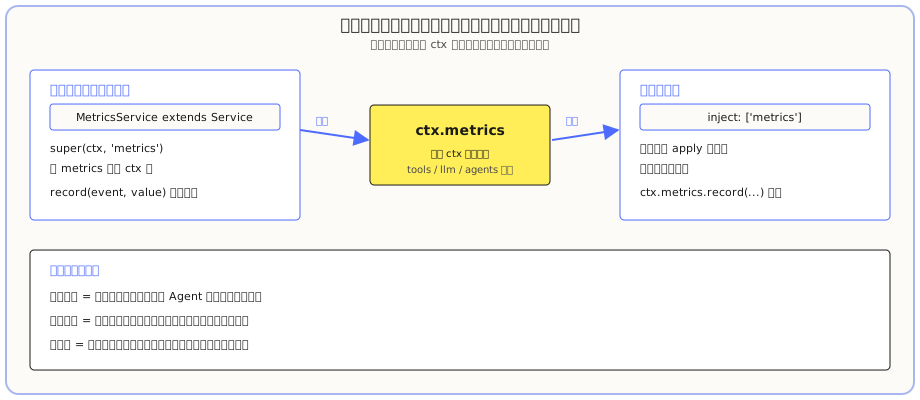
The provider mounts the service on ctx, the consumer declares dependencies and calls directly. Built-in capabilities like tools, llm, agents are essentially the same mechanism — when you use them, you're a "consumer".
Hands-on: Make Two Plugins Actually Talk
Above was all concept. Now let's hands-on write a provider and a consumer and let them actually talk. In a workspace where you want to put plugins (first cd there) create a directory:
New-Item -ItemType Directory -Path "service-demo\src" -ForceStep 1: Install Dependencies in the Plugin Directory
The class form needs to import the framework's @deepseek-ai/cordis package. Your workspace doesn't have it, loading directly will report Cannot find package '@deepseek-ai/cordis'. So go into the plugin directory and install it first:
cd "E:\software-workspace\DeepSeek harness demo\service-demo"   # replace with your directory
npm init -y
npm install @deepseek-ai/cordis
After installation, modify package.json and add a line "type": "module" to the root object — otherwise Node will guess the module format every time it loads the plugin and spam warnings:
{
  "name": "service-demo",
  "version": "1.0.0",
  "type": "module"
}
Step 2: Write the Provider
Create service-demo\src\provider.js:
import { Service } from '@deepseek-ai/cordis'

export default class MetricsService extends Service {
  constructor(ctx) {
    super(ctx, 'metrics')
  }

  record(event, value) {
    console.log('[metrics]', event, value)
  }
}
Step 3: Write the Consumer
Create service-demo\src\consumer.js:
export const name = 'consumer'
export const inject = ['metrics']

export function apply(ctx) {
  ctx.metrics.record('plugin_loaded', 1)
}
Step 4: Declare and Verify
Create service-demo\cordis.yml (replace the path with your own, note spaces must be written as %20):
- insert:
    - id: provider
      name: 'file:///E:/your-workspace/service-demo/src/provider.js'
    - id: consumer
      name: 'file:///E:/your-workspace/service-demo/src/consumer.js'
Use headless for quick verification:
cd your-workspace-directory
dsh --profile headless --patch "./service-demo/cordis.yml" "Just reply: hi"
In the output you'll see:
[metrics] plugin_loaded 1
hi
[metrics] plugin_loaded 1 is the consumer calling the provider's method — your two plugins actually talked. At this point, you've personally verified all three forms: function, object, class.
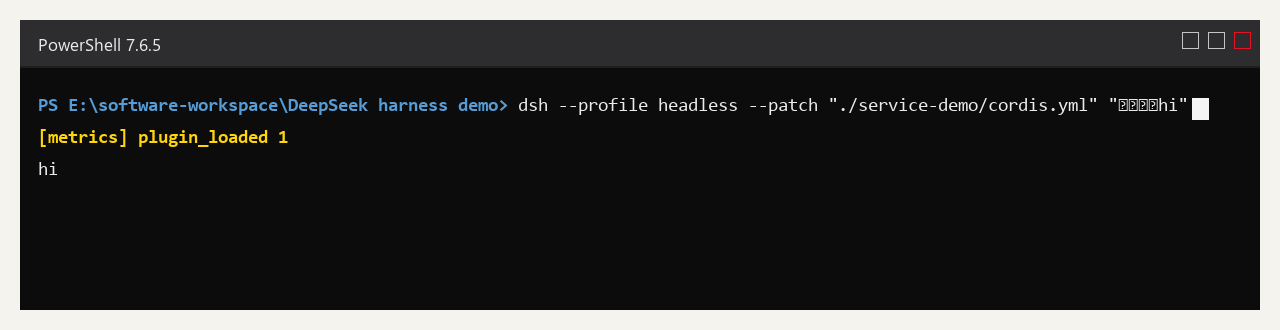
The yellow line [metrics] plugin_loaded 1 in the terminal output is the consumer calling the provider's method via ctx.metrics.record(...) — the two plugins actually talked.
Let dsh Do It: One Prompt Does It
The directories, dependencies, two files above were all manually created by you. As usual, writing plugins is something dsh can do itself — and it knows "how services should be defined, how dependencies should be injected" better than you.
Send this prompt directly in the Web UI's input box:
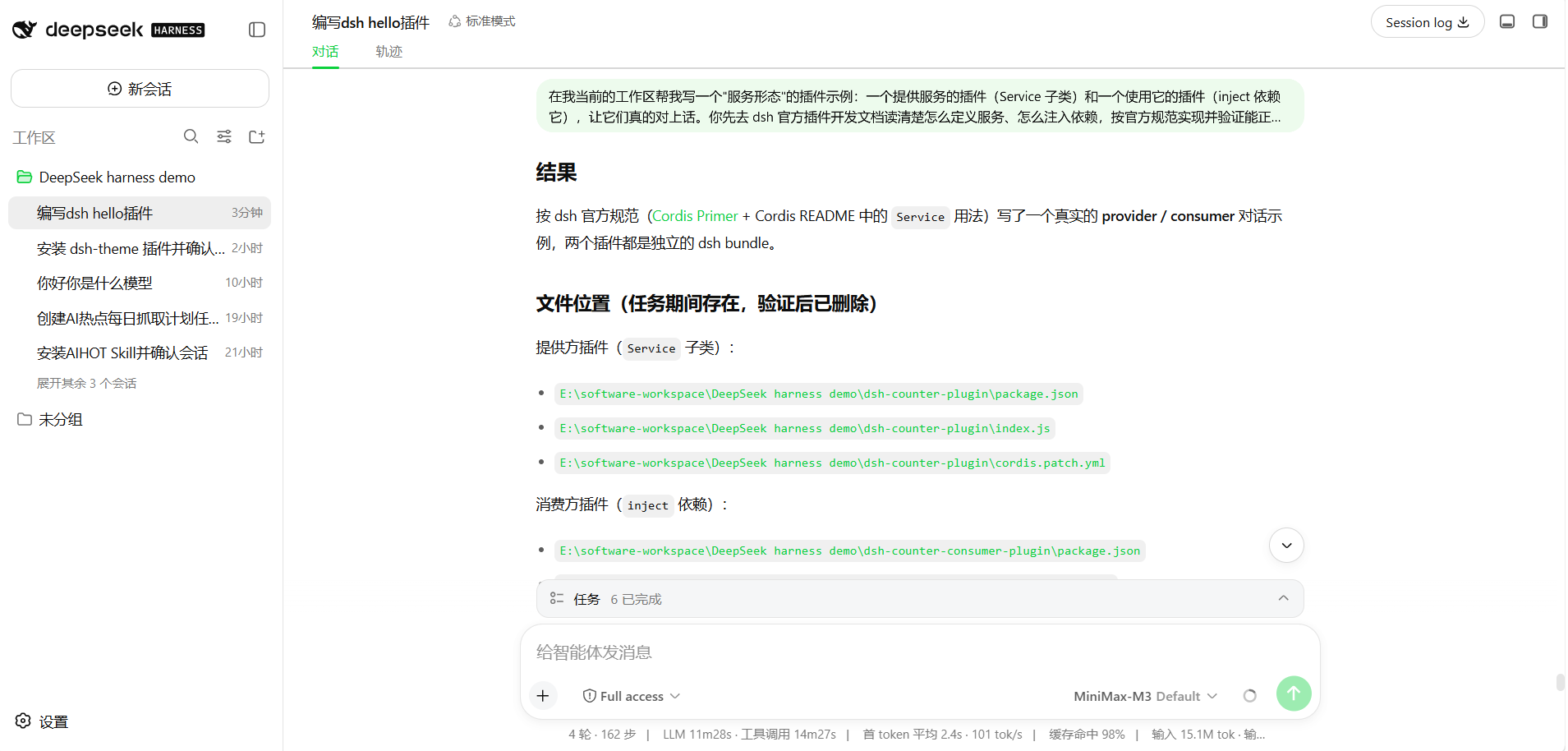
In my current workspace, help me write a "service form" plugin example: a service-providing plugin (Service subclass) and a plugin that uses it (inject depending on it), make them actually talk. First read the official dsh plugin dev docs to understand how to define services, how to inject dependencies, implement per the official spec, verify it can load and call normally, and finally tell me the result and where the files are.It will go look up the official docs itself, install dependencies itself, write two plugins itself, verify whether they can talk to each other itself. You just verify what it wrote.
Common Pitfalls
| Problem | What's happening | How to handle |
|---|---|---|
Reports Cannot find package '@deepseek-ai/cordis' | Plugin directory didn't install dependencies | npm install @deepseek-ai/cordis in the plugin directory |
A bunch of MODULE_TYPELESS_PACKAGE_JSON warnings | package.json didn't declare module type | Add "type": "module" |
| Consumer can't get the service | Service name mismatch | Check the name in super(ctx, 'xxx') and inject: ['xxx'] are exactly the same |
| Class plugin fails to load | No extends Service or didn't call super | The class form must inherit Service and super(ctx, 'service-name') |
ctx.metrics is undefined | Consumer didn't declare inject | In the consumer write export const inject = ['metrics'] |
What you learned in this chapter
You pass if you can complete the items below:
- [ ] State what each of the three forms looks like, and when to use which
- [ ] Know that service = a named capability mounted on
ctx;tools/llm/agentsare all services - [ ] Write a
Servicesubclass as the provider,super(ctx, 'name')to register the service - [ ] Write an
injectconsumer, call directly viactx.service-name.method()inapply - [ ] Know that the class form plugin must install the
@deepseek-ai/cordisdependency in the plugin directory first