
CH 15 · Skill and Workflow
Chapter Goal
Earlier, you had to explain your requirements clearly every time you had the Agent do something. But some tasks have fixed steps — like the "summarize a repo, output as a document" we ran in CH 06, or weekly reports, organizing data, the kind of daily tasks. Having to repeat the process from scratch every time is too wasteful. These tasks are worth turning into "a single instruction sheet": tell the Agent "when you encounter this kind of task, follow this set of steps". That's Skill. This chapter makes clear what dsh's Skill is, where it comes from, how the model uses it, then installs a ready-made Skill for direct use — just say a word to the Agent, and it'll install it itself — turning it into your personal "reusable capability".
A Key Fact: Skill Is Also a Plugin
Just like MCP and subagents, Skill in dsh is not a separate entry; it's another combination of plugins. Looking at the config tree, the skill capability family is composed of four pieces:
| Plugin | What it does | Role |
|---|---|---|
dsh-skill | Registry: merge skill directories from various sources, by name resolve the "winning" one | Warehouse manager |
dsh-skill-filesystem | Discover local skills from project and user directories, monitor file changes | Buyer |
dsh-tool-skill | Display the available skill list to the model, provide the skill loading tool | Front desk |
dsh-skill-badge | Official badge skill that ships with it, disabled by default | Decoration |
All four of these are installed by default in the web config — so you can use them right now, nothing to install. This is again CH 09's "everything is a plugin": even "reusable capabilities" themselves are assembled by plugins.
What Is Skill: A Written "How to Do a Task"
Tools are "actions" the Agent can "call" (read/write files, search the web); Skills are "instruction sheets" written for the Agent — a set of task-specific instructions telling it "when you encounter this kind of task, follow this set of steps".
The biggest difference is reusability: tools are system-provided, Skills are accumulated by you. You figure out a useful approach for a task, write it as a Skill, and from then on when the Agent encounters the same kind of task, you don't have to repeat the requirements. And skills follow their location: placed in the project's .dsh/skills is project-level, only effective for that project; placed in the user directory ~/.dsh/skills is global-level, available in any project — the next section "five shelves" will show the full hierarchy.
What About "Workflow": A Skill Is the Simplest Workflow
A line to remember: a Skill is the simplest workflow. The essence of workflow is "solidifying human experience into a process" — and a Skill is exactly that: clear input, clear output, fixed steps, individually reusable. It's a small process compressed into a single task.
The difference is granularity. A Skill handles "how to do a single task" (a recipe for one dish); Workflow handles "how to chain multiple tasks in order" (the whole pipeline from buying groceries, washing vegetables to serving, also managing branches, handoffs, who goes first). In dsh's Standard preset, "Skills" and "Workflows" are two side-by-side tools — for single-step fixed routines, Skill is enough; only for multi-step chains do you need Workflow.
Putting the two side by side, the difference is clearer:
| Dimension | Skill | Workflow |
|---|---|---|
| Handles | How to do a single task | In what order to chain multiple tasks |
| Granularity | One-step fixed routine | Multi-step pipeline |
| Branching & handoff | Not responsible | Responsible (conditions, handoffs, order) |
| Reuse | Individually reusable | Re-orchestrate as needed |
| Analogy | A recipe for one dish | The whole pipeline from buying groceries to serving |
So when you write a Skill for just one fixed task, you've actually built "the simplest workflow".
What Does a Skill Look Like
A Skill is a Markdown file with frontmatter; the standard form is a directory bundle: the folder name is the skill name, and inside there must be SKILL.md — suited for skills that come with accompanying resources (scripts, reference docs, assets).
The name must be lowercase kebab-case (^[a-z0-9]+(?:-[a-z0-9]+)*$), e.g. code-review, weekly-report.
A standard directory bundle looks like this:
code-review/
├── SKILL.md        # Required: frontmatter + instruction body
├── scripts/        # Optional: accompanying scripts (.py / .sh etc.)
├── references/     # Optional: reference docs, review checklist templates
└── assets/         # Optional: assets, sample files
SKILL.md is the only required file; the body can reference scripts and reference docs in the bundle via relative paths. The minimal structure looks like this:
---
name: code-review
description: Review a piece of code against a unified checklist and output structured review comments
whenToUse: When the user asks for "code review"
---

# Code Review

Follow this order:

1. Read the relevant README first to understand what problem this code solves;
2. List public exports and main functions, noting what each one does;
3. Look for obvious risk points: error handling, edge cases, sensitive information;
4. Output as a table: File / Issue / Severity / Suggestion.
Only name and description are required in the frontmatter; the other fields are all optional:
| Field | Purpose |
|---|---|
name | Skill's unique name (kebab-case, required) |
description | One-line description; the model uses it to judge "is this task for me" (required) |
whenToUse | Extra usage-timing hint (optional) |
disable-model-invocation | Set to true: only the user can call it with /name, the model cannot auto-load (optional) |
user-invocable | Set to false: only the model can call it, user /name is invalid (optional) |
Two Switches: Who Can Call It
Two fields in the frontmatter handle "who can call it":
| Combination | Effect |
|---|---|
| Neither | Both model and user can call (default) |
disable-model-invocation: true | Only the user can call via /name; invisible in the model directory and the skill tool — suited for sensitive or high-cost flows to prevent the model from triggering it casually |
user-invocable: false | Only the model can call; user /name is invalid |
| Both off | Only trusted code can call it; model and user both can't touch it |
Where Skills Come From: Five "Shelves"
First distinguish two things: this section is about where dsh reads skills from — i.e. which local directory the skill must be placed in to be discovered. dsh uses the dsh-skill-filesystem plugin to scan several root directories in a fixed order and collect the skills into the registry. "Installing a new skill" is another thing: go to a community skill market (like Tencent's SkillHub) or dsh's Plugin Market, and install someone else's ready-made SKILL.md into these shelf directories — the "install a ready-made Skill" section below does exactly this.
dsh-skill-filesystem scans several root directories in a fixed order, collecting the skills into the registry. The higher up, the higher the priority — when a same-named skill appears in multiple shelves, the one ahead wins:
| Priority | Directory | Who puts it here |
|---|---|---|
| 1 | <project-root>/.dsh/skills | Follows the project, distributed with the repo |
| 2 | <project-root>/.agents/skills | Compatible with other tools (e.g. Claude Code) shared location |
| 3 | Custom dirs from config customSkillDirs | Other locations you specify manually |
| 4 | <dshHome>/skills (~/.dsh/skills) | User-level, available in any workspace |
| 5 | <agentsHome>/skills (~/.agents/skills) | User-level directory shared with other Agent tools |
How the Model "Sees" Skills
Skills are written for the model to see; how does it know which exist? This mechanism is provided by the dsh-tool-skill plugin, installed by default in the web config (you can see it in dsh --profile web --dump-config). It works through three mechanisms:
- Session directory: before the session starts and the first request, the model receives a persistent message listing all available skills' names and one-line descriptions, and is told "before acting, load the matching skill first, don't guess from the summary".
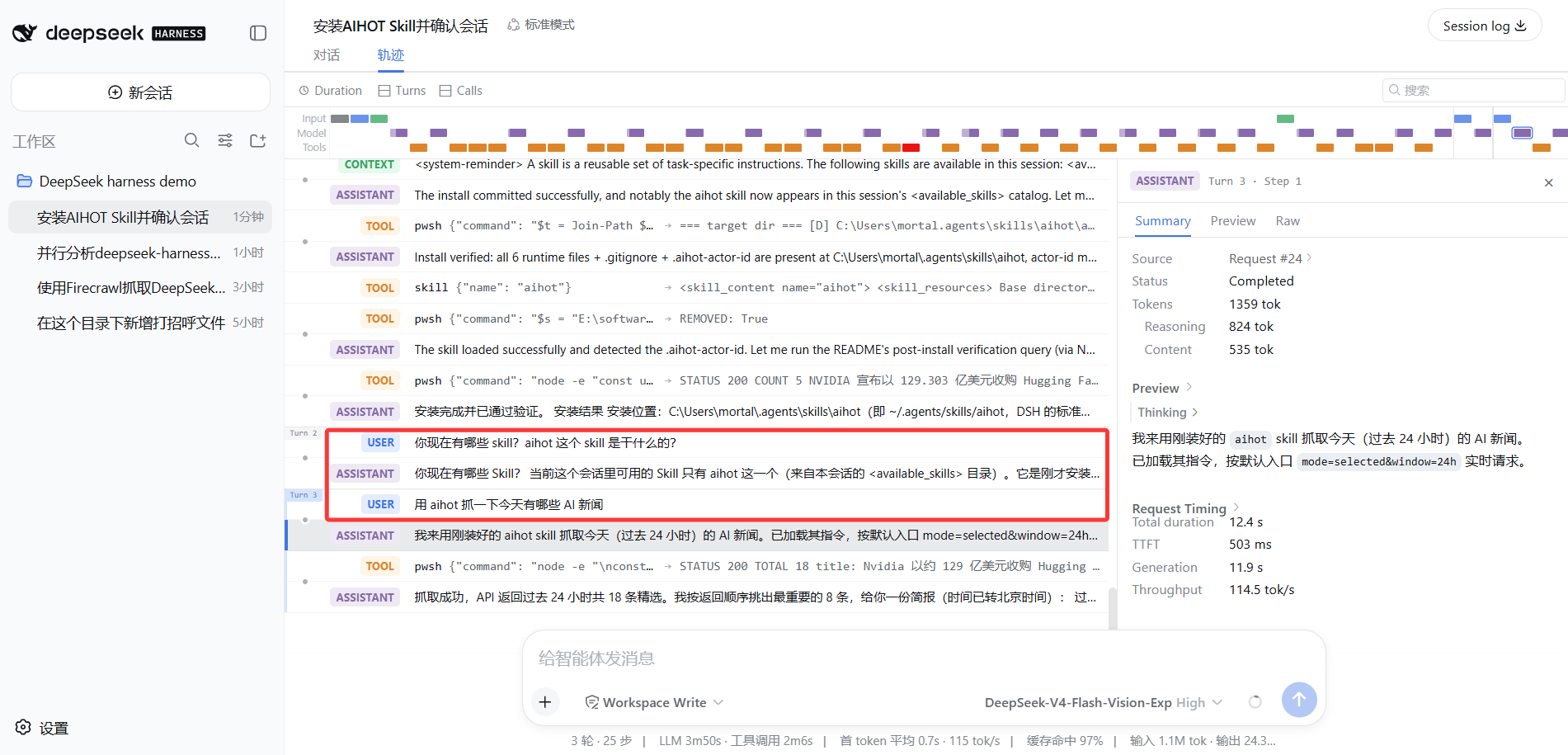
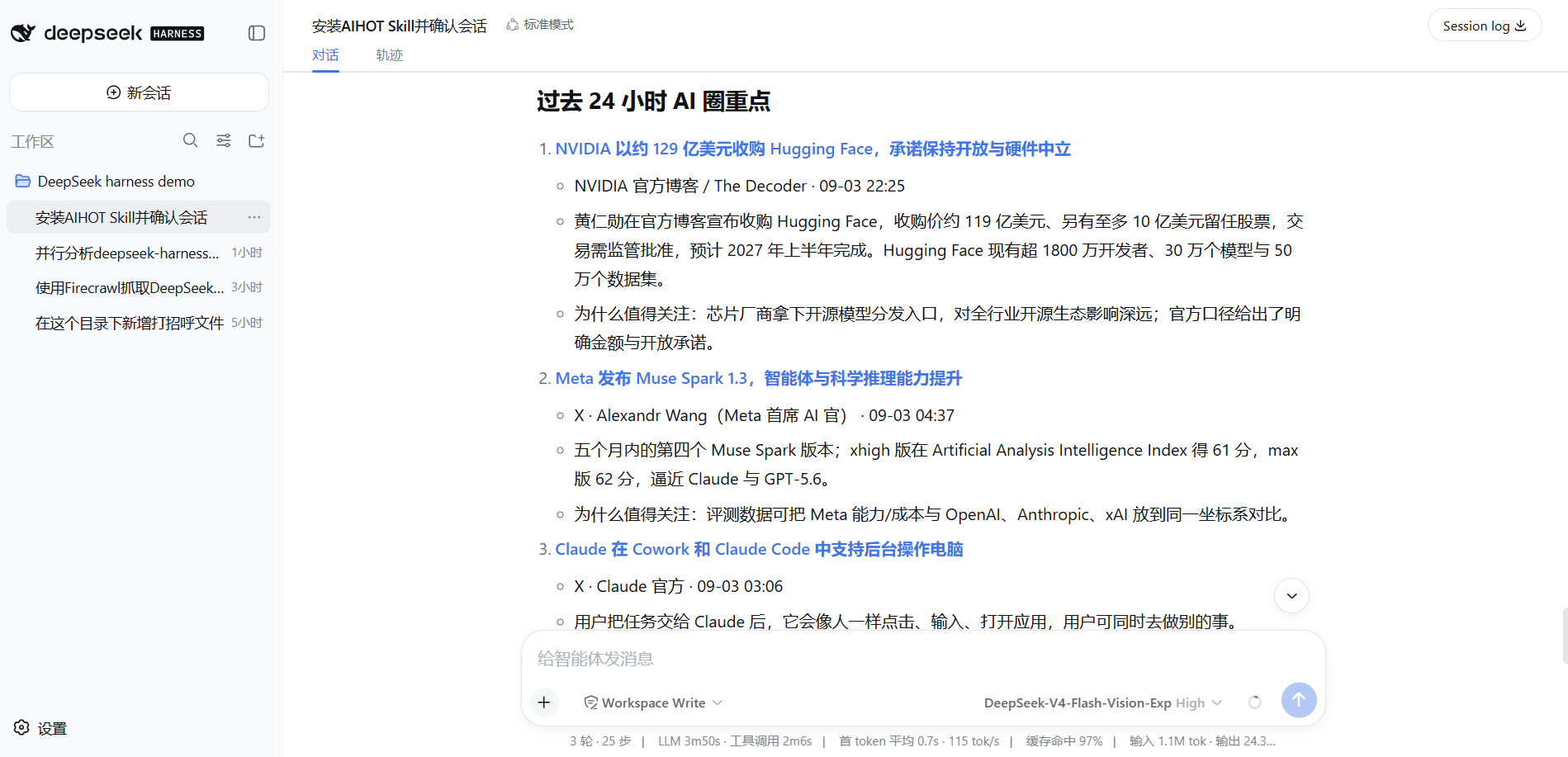
skilltool: when the model judges a skill is relevant, useskill({ name })to load the full instruction body — the body returns as an<skill_content>block, and stays in the history as a tool result. The picture below is a real Trajectory: the model first calls theskilltool to loadaihot's full instructions, then callspwshto run the verification request; the two tool calls are crystal clear in the Trajectory.
 3. User gesture
 /name: you type /code-review directly in the input box, and the skill's instructions are injected into the round as a user message, and the model just follows. Note: this name must actually exist in the workspace shelves, and allow user invocation — typing a skill name that doesn't exist is treated as plain text and has no effect.
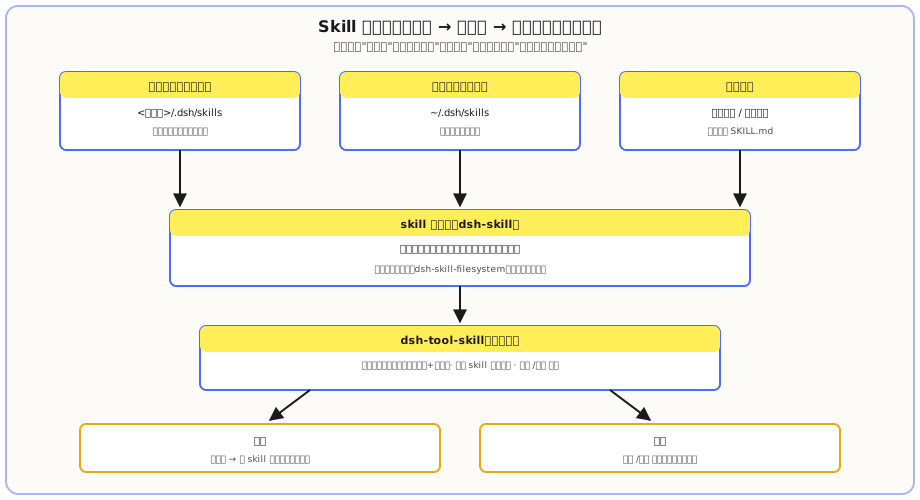
A detail: after the user's /name injection, the model won't use the skill tool to load it again — avoiding the same instructions being stuffed in twice, burning tokens.
If you ask the model "what skills do you have now" and it can't report them, first confirm the web config has the @deepseek-ai/dsh-tool-skill plugin (one look with dsh --profile web --dump-config).
Hands-on: Install a Ready-Made Skill (Use It As Is)
The essence of installing a ready-made skill is to put someone else's ready-made SKILL.md into dsh's "shelf" directory (usually the project-level .dsh/skills) — the community already has a large batch of ready-made skills to take.
Here we use aihot as an example: it's a search-type skill from the well-known AI tech blogger "数字生命卡兹克" (Digital Life Kazike), skilled at scraping daily AI news and industry trends.
Step 1: Say a word to the Agent, let it install for you
No need to find files and create directories yourself. Go back to the conversation and say:
Please install the AIHOT Skill: https://aihot.virxact.com/aihot-skill/README.md Tell me if I need to start a new session after installation. If the installer supports it, please append: --actor your-Actor-ID
The ID after --actor is assigned to you after registering on the AIHOT platform, and will be written to the local .aihot-actor-id after installation; the Agent will carry it for identification when requesting.
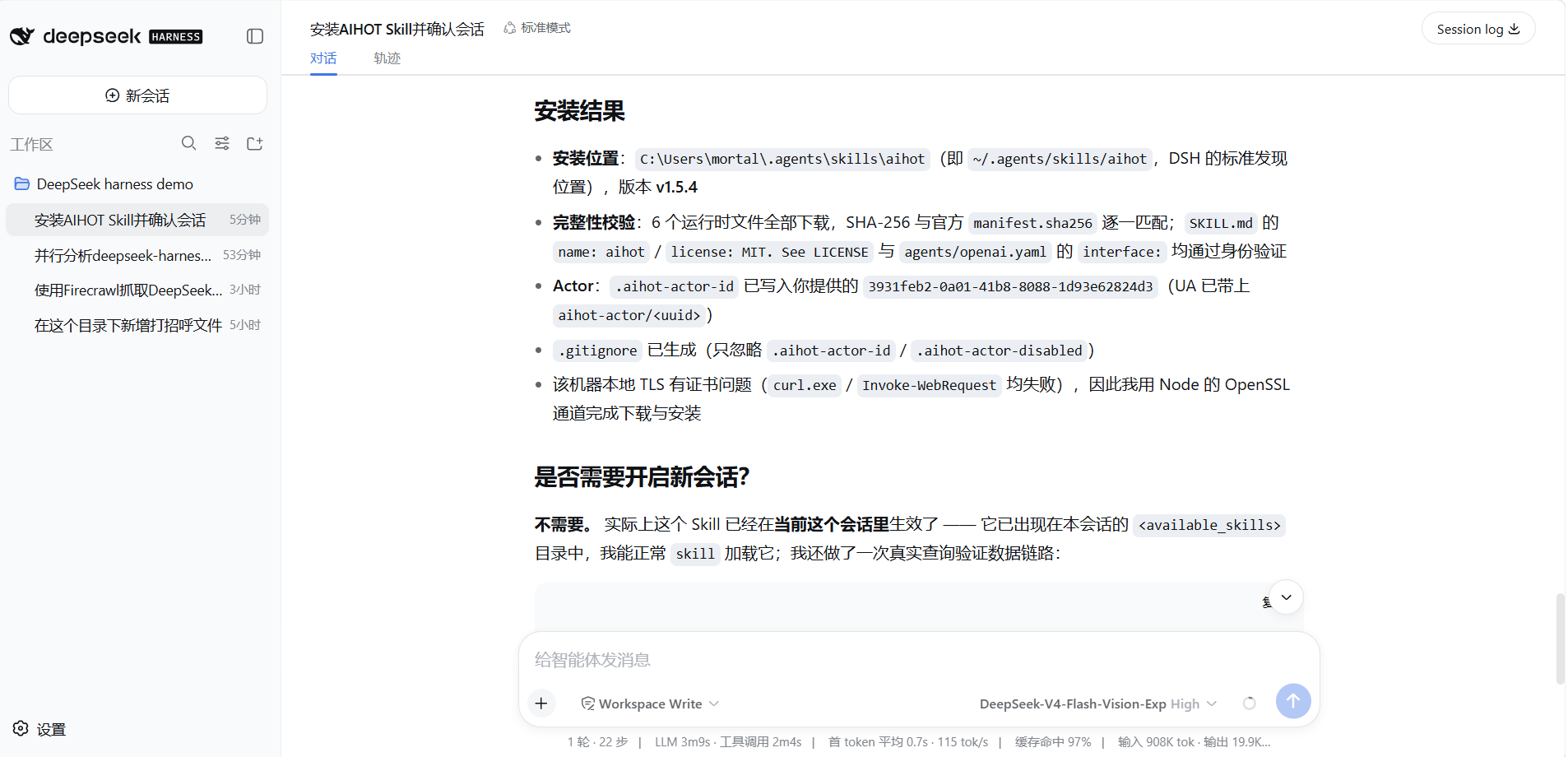
The Agent will do it itself: go to the official site, download AIHOT's SKILL.md and accompanying files, place them in DSH's standard discovery location (~/.agents/skills/aihot/), do SHA-256 integrity check one by one, write the actor config, generate .gitignore, and report the result to you. After installation, no need to start a new session — it's already in the current session's <available_skills> directory, ready to use.
Step 2: Have the model report the new Skill
Back in the conversation, ask:
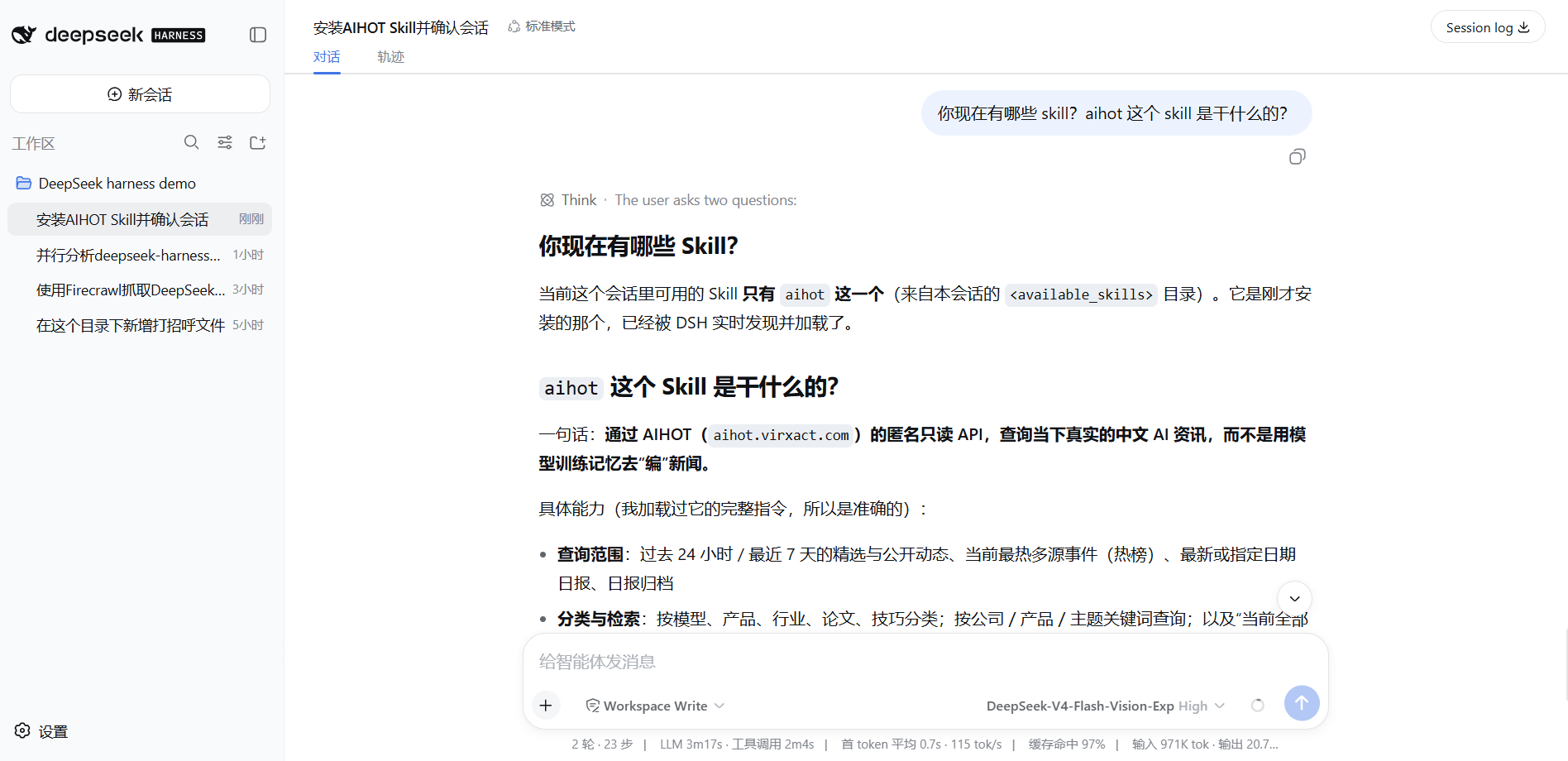
What skills do you have now? What does the aihot skill do?
The model will report it — you wrote zero lines of code and now have a reusable capability. It will also tell you what this skill specifically does (aihot queries current real Chinese AI news through AIHOT's anonymous read-only API, not "making up" news from training memory).
Step 3 (optional): Have the model use it
Just say "use aihot to scrape today's AI news", and the model will load this skill to scrape. Someone else's refined search flow has now become your capability — that's "use it as is".
Common Pitfalls
| Pit | How to avoid |
|---|---|
Forgot description | Required field missing, the entire skill is discarded after warning |
| Directory level placed wrong | Only <root>/<name>/SKILL.md or <root>/<name>.md is recognized, one level, don't nest deeper |
| Model doesn't actively use it | Write description clearly about "when to use it" (whenToUse also helps); if really worried, use /name to inject directly |
| Edited body but model doesn't react | Body edits don't affect the directory summary; the model needs to "reload" once; only editing summary fields like description immediately reflects in the directory |
What you learned in this chapter
You pass if you can complete the items below:
- [ ] State that a Skill is "reusable instructions written for the Agent", and the difference from a tool is reusability
- [ ] Know that Skill in dsh is also a plugin (skill registry + filesystem discovery + tool consumer)
- [ ] Be able to state a Skill's structure (frontmatter has
name/descriptionrequired,whenToUseoptional) - [ ] Know the five shelves' priority (project
.dsh/skillshighest, user directory next, usable across projects) - [ ] Have run "tell the Agent a sentence → it installs the skill → model reports it → model loads and uses it"
- [ ] Distinguish the two switches
disable-model-invocationanduser-invocable